
Add Google Tag Manager to your Help Center
Your Help Center is often where customers go before they contact support. By tracking how visitors use it, your team can understand what content is helpful, what customers search for often, and which articles may need updates.
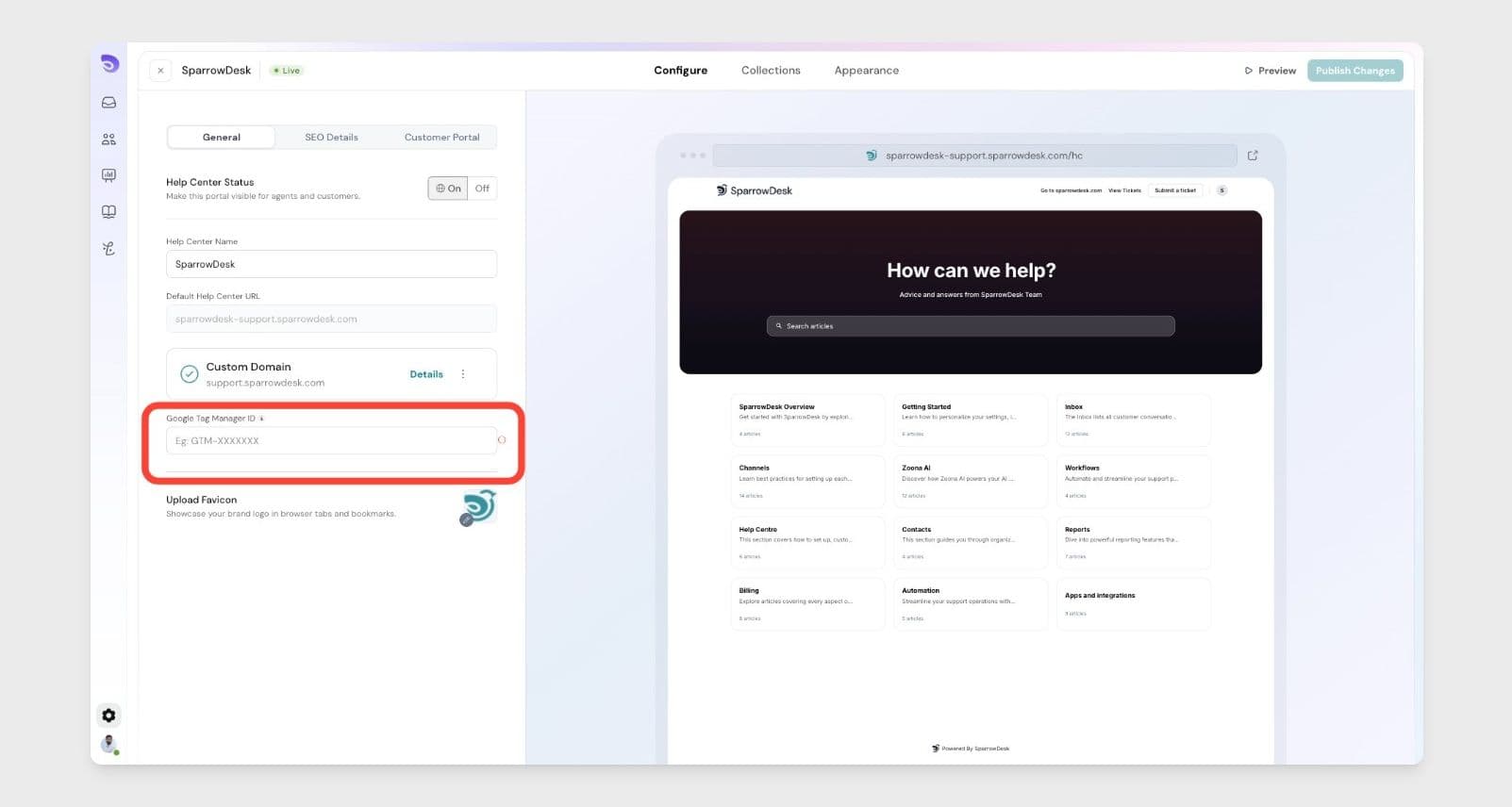
With the Google Tag Manager integration in SparrowDesk, you can add your Google Tag Manager ID to your Help Center once, and it will be included across all Help Center pages.
This makes it easier to use tools like Google Analytics to see which articles customers visit, how they move through your Help Center, and where your self-service content can improve.
What you can do with this integration
- Connect analytics tools through Google Tag Manager
- Understand which help articles customers read the most
- See how visitors move through your Help Center
- Use visitor activity to improve your help content
How to enable Google Tag Manager
- Go to Settings in SparrowDesk.
- Open Help Center settings.
- Find the Google Tag Manager ID field.
- Enter your Google Tag Manager ID.
- Click Save.
Once saved, SparrowDesk will add Google Tag Manager across all pages of your Help Center.
Your Google Tag Manager ID usually looks like this: GTM-XXXXXX
Get started
Add your Google Tag Manager ID in SparrowDesk Help Center settings to start understanding how visitors use your help content.